Welcome Enjoy Tutorials

Liked us?

Showing posts with label Pinterest. Show all posts

Thursday, May 2, 2013

How To Combine Pinterest With Blog Of Blogger

Pinterest is a new social networking booming, its name comes from the words Pin + Interest and its philosophy is the type "A picture is worth a thousand words." The idea is as simple as effective and in this post we will see how you can use it to promote and position the contents of your blog on this new network.

 What is Pinterest?

Uff ... maybe you put an example, imagine that you plan to decorate a room. Surely you begin looking for some ideas in decorating magazines and cut out some of the photos, that's what is called making a PIN. When trimmed the photos you put on a corkboard, or in the refrigerator or in a notebook of meeting, this is called Dashboard.

Words on Pinterest you can create different boards or bulletin boards for through cuts collected go Pins (photos or videos) that ultimately link to the page or the original post.

As a social network, can follow or follow one or more of your boards. Similarly you can follow other people.

How do I integrate with Blogger Pinterest!
You have a blog, right? If your blog comes to dessert, cooking, crafts, travel, fashion, decor, film, music, photos, etc., if ultimately have a significant visual component to your post, you're in luck. Your blog is your magazine and post the pages of it, and therefore have a job and is "Pin It" your best post on Pinterest.

Keep in mind that the more attractive the visual part of your post greater chance that someone will click on the picture from Pinterest and drive to your post and best of all, you start to follow you.

Sign in options
To join Pinterest, you only need to register on http://pinterest.com, remember that you can validate you with your Facebook or Twitter account.


Video tutorial Pinterest


Getting Started on Pinterest
Here are the steps once you have your invitation.

     You can log in using your Twitter, Facebook or via Pinterest
     Fill in your profile data, logo / photo, name ...
     Install button "Pin It" in the bookmarks bar of your browser
     Browse through your blog and open one of your posts, click the Pin it
     You will see a new window where you are prompted to select the image that represent this Pin
     Create a Board, my advice is that you respect the classification that you have on your blog with tags and ready!. You got your first Pin and your first board.


Pinterest on your iPhone
Download here Pinterest Free for your iPhone, so using the camera take a picture of a meal, to a painting or landscape and "pinéala" directly.


Why Pinterest is important for my blog?

Until now we have always emphasized that the content (text) is the most important for Blogger because on them depends the positioning of the blog, now if we lucirnos within options should also enhance the images included in our items, this makes excel, internalize that every post on our blog is like a page from a magazine, so the end result is much more professional and all options and Blogger makes an explosive combination.


One last tip, variety is the spice, so create your hobbies and tastes in parallel with the boards of your blog.

Wednesday, April 3, 2013

Animated Stylish Bookmarks Widget For Blogger Blo

The social bookmarking gadgets and widgets objetive is to catch the eye of visitors and get them bookmarking your blog.

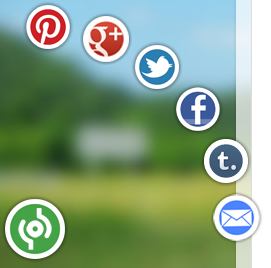
Here i will show you a social bookmarking gadget with a stylish animated effect.This stylish bookmarks gadget a basic share button is placed in the corner of your blog, then on hover 6 icons for the main social bookmarking websites appear in a semicircle.

The buttons that appear are for Pinterest, Google+, Facebook, Twitter, Tumblr and Email.

animated stylish social bookmark gadget

Add This Animated Stylish  Bookmarking Gadget To Your Blog today.

Note:Remember Always Back Up Your Template Before You Make Changes .


To Back Up A Blogger Template follow this Steps.

Step 1. In Your Blogger Dashboard Click The Drop Down Menu For Your Blog > Choose Template > Then Edit Html > Tick The Expand Widget Templates Box .


Step 2. Find the following piece of code in your blogs Html : (Click Ctrl and F for a search bar to help find the code:
</body>

Step 3. Copy and Paste the following code Directly Above / Before </body>
 ---------------------------------------------------------------------------------------------------------------------------------


<!-- Start Shareaholic Stylish Bookmarks script -->
<script type='text/javascript'>
(function() {
var sb = document.createElement(&quot;script&quot;); sb.type = &quot;text/javascript&quot;;sb.async = true;
sb.src = (&quot;https:&quot; == document.location.protocol ? &quot;https://dtym7iokkjlif.cloudfront.net&quot; : &quot;http://cdn.shareaholic.com&quot;) + &quot;/media/js/jquery.shareaholic-publishers-ss.min.js&quot;;
var s = document.getElementsByTagName(&quot;script&quot;)[0]; s.parentNode.insertBefore(sb, s);
})();
</script><small><a href='http://tricksblogspot.blogspot.com/2012/05/animated-stylish-social-bookmark-gadget.html'>Animated Social Gadget</a> - <a href='http://tricksblogspot.blogspot.com'>Blogger And Wordpress Tips</a></small>

<!-- End Shareaholic stylish Bookmarks script -->
------------------------------------------------------------------------------------------------------------------------------
 Step 4. Save Your Template.

Enjoy!


Tuesday, April 2, 2013

Get Your 3D Social Icons With Spin 360 degrees

3D Social Icons With the Css rotate when you place your cursor over each icon they spin 360 degrees, they then spin back 360 when the cursor is removed (Cool eh).I also have a slight opacity hover effect on the icons.So in this post I will show you how to add the icons to your blog, linked to your social profiles and feeds.

Add The Social Icons With Css Effects To Your Blog Like This sample:


IconIconIconIconFollow Me on Pinterest

spice up your blog

OK so I have two tutorials, one for Blogger and one for Wordprtess.

Wordpress Tutorial


1) In Your Wordpress Dashboard Click 'Apperance' > 'Widgets' > Add A text Widget to your sidebar and paste in the code

Widget Code
--------------------------------------------------------------------------------------------------------------------------
   <style> #social a:hover {background-color: transparent;opacity:0.7;} #social img { -moz-transition: all 0.8s ease-in-out; -webkit-transition: all 0.8s ease-in-out; -o-transition: all 0.8s ease-in-out; -ms-transition: all 0.8s ease-in-out; transition: all 0.8s ease-in-out; } #social img:hover { -moz-transform: rotate(360deg); -webkit-transform: rotate(360deg); -o-transform: rotate(360deg); -ms-transform: rotate(360deg); transform: rotate(360deg); } </style> <center><div id="social"> <!--Start Rss Icon--> <a title="Grab Our Rss Feed" href="YOUR-FEED-URL-HERE" target="_blank"><img border="0" src="https://blogger.googleusercontent.com/img/b/R29vZ2xl/AVvXsEiiTSOIhGbl5poxLc-5FkrhFTWtEc9ZqEDU9uPUpF2WHcT6U3rLhuhNyzeJGlzY4wxiEfpCh8S_Ot9rsubF7Xrttsf9PU2ev2KuTCUIwKJQ1Qy2ykT-SKwI34S6uRO6aXB6nRrIDc9fbziR/s1600/RSS-48x48.png" style="margin-right:1px;" alt="Icon"/></a> <!--End Rss Icon--> <!--Start Email Rss Icon--> <a rel="nofollow" title="Get Free Updates Via Email" href="YOUR-EMAIL-RSS-URL-HERE" target="_blank"><img border="0" src="https://blogger.googleusercontent.com/img/b/R29vZ2xl/AVvXsEj0Dcn-4uN-Ow6bPyX53a8g5P8LNdatq8MFRaTTPujdyVUr_4-3j2ocDQ20IjLu6qJS5ROLX1C4V6LLRCqIlubiV9aL1K6JQlkuDOvSevgD4w-ZBulX8T4dz1e-ARuZKN9WBE86R6sry_ZW/s1600/RSS-EMAIL-48x48.png" style="margin-right:1px;" alt="Icon"/></a> <!--End Email Rss Icon--> <!--Start Facebook Icon--> <a rel="nofollow" title="Like Our Facebook Page" href="YOUR-FACEBOOK-PAGE-URL-HERE" target="_blank"><img border="0" src="https://blogger.googleusercontent.com/img/b/R29vZ2xl/AVvXsEh62hdjOKdNS9xuS5KCzOGsieixeFMoltP8fjRBhKWphfCRgKZZ1T1Gey8nDRgjx6Hs2-Lyylh9pF6agzqfV0k1rxhsuOJEbwIT0C-Il2SSeQTfr_84YbT4JqgQNA6wJynMaW_b34gXI2s9/s1600/FACEBOOK-48x48.png" style="margin-right:1px;" alt="Icon"/></a> <!--End Facebook Icon--> <!--Start Twitter Icon--> <a rel="nofollow" title="Follow Our Updates On Twitter" href="YOUR-TWITTER-URL-HERE" target="_blank"><img border="0" src="https://blogger.googleusercontent.com/img/b/R29vZ2xl/AVvXsEi6TKBaHcvx-8KYCF3ddSX65kMISoBqOlpVfLz-rKK04p9Bo4MNf_gwUjV2EiwfKHSrJfLRxK6UofoVEdZHUf1k1zVleQcwt0Ah-f9ITlaIKo1CByBB6Vaex6fR3_ByXz3YIFzIZV07eMc8/s1600/TWITTER-48x48.png" style="margin-right:1px;" alt="Icon"/></a> <!--End Twitter Icon--> <!--Start Google+ Icon--> <a title="Follow Us On Google+" rel="nofollow" href="YOUR-GOOGLE-PLUS-URL-HERE" target="_blank"><img style="margin-right:1px;" src="https://blogger.googleusercontent.com/img/b/R29vZ2xl/AVvXsEgx6pJcZAo24I7Azo43W1nocI_c3vuffo6TSMSxsFBP13fJ4-zQnLpvFSSIvHwEy-ChZIn5MFbPR9LYdcvA_60WH0wjNJbZ-AWa23ySe_9_fOe1U36dM5rpSvhoqkIXuPxl0mWBa4vqosOg/s1600/GOOGLE-PLUS-48x48.png"/></a> <!--End Google+ Icon--> <!--Start Pinterest Icon--> <a title="Follow Our Pins" rel="nofollow" href="YOUR-PINTEREST-URL-HERE" target="_blank"><img style="margin-right:1px;" src="https://blogger.googleusercontent.com/img/b/R29vZ2xl/AVvXsEj1xi0QuRG7gJFjsA7UTY5JoBzm900BmM-YTd33XOOsAd9euBgbIjz7Sne59O7FuUpYUj_UaAzfIIN2bH6Dr8dWYlF8aSzvAHoqT8fBpqZHROvAdx0eyAi9wRFbI7sgBJpNzDaJRWei_zyA/s1600/PINTEREST-48x48.png" alt="Follow Me on Pinterest" /></a> <!--End Pinterest Icon--> </div><br/> <!--Start Feed Count Button--> <a href="YOUR-FEEDBURNER-URL-HERE" target="_blank"><img alt="spice up your blog" src="http://feeds.feedburner.com/~fc/spiceupyourblog?bg=ff9933&fg=000000&anim=1" style="border:0" /></a><!--End Feed Count Button--> </center>
------------------------------------------------------------------------------------------------------------------------

Important - Replace the yellow sections with your social profiles and feed URLs.

Note - If your familiar with Wordpress you can off course add the Css to your theme stylesheet.

Remove some of the icons - I have the code for each icon between tags like this <!--Start Rss Icon-->Code here<!--End Rss Icon-->>, to remove an icon remove the code between the tags.So for pinterest you will remove the code between the Start Pinterest and End Pinterest tags etc...

Blogger Tutorial

1) In the new Blogger dashboard click the drop down menu for your blog > Choose 'Layout' > Click 'Add A Gadget' > Choose 'Html Javascript' > Paste In The Following Code as shown in the video :


Widget Code:
------------------------------------------------------------------------------------------------------------------------

    <style> #social a:hover {background-color: transparent;opacity:0.7;} #social img { -moz-transition: all 0.8s ease-in-out; -webkit-transition: all 0.8s ease-in-out; -o-transition: all 0.8s ease-in-out; -ms-transition: all 0.8s ease-in-out; transition: all 0.8s ease-in-out; } #social img:hover { -moz-transform: rotate(360deg); -webkit-transform: rotate(360deg); -o-transform: rotate(360deg); -ms-transform: rotate(360deg); transform: rotate(360deg); } </style> <center><div id="social"> <!--Start Rss Icon--> <a title="Grab Our Rss Feed" href="YOUR-FEED-URL-HERE" target="_blank"><img border="0" src="https://blogger.googleusercontent.com/img/b/R29vZ2xl/AVvXsEiiTSOIhGbl5poxLc-5FkrhFTWtEc9ZqEDU9uPUpF2WHcT6U3rLhuhNyzeJGlzY4wxiEfpCh8S_Ot9rsubF7Xrttsf9PU2ev2KuTCUIwKJQ1Qy2ykT-SKwI34S6uRO6aXB6nRrIDc9fbziR/s1600/RSS-48x48.png" style="margin-right:1px;" alt="Icon"/></a> <!--End Rss Icon--> <!--Start Email Rss Icon--> <a rel="nofollow" title="Get Free Updates Via Email" href="YOUR-EMAIL-RSS-URL-HERE" target="_blank"><img border="0" src="https://blogger.googleusercontent.com/img/b/R29vZ2xl/AVvXsEj0Dcn-4uN-Ow6bPyX53a8g5P8LNdatq8MFRaTTPujdyVUr_4-3j2ocDQ20IjLu6qJS5ROLX1C4V6LLRCqIlubiV9aL1K6JQlkuDOvSevgD4w-ZBulX8T4dz1e-ARuZKN9WBE86R6sry_ZW/s1600/RSS-EMAIL-48x48.png" style="margin-right:1px;" alt="Icon"/></a> <!--End Email Rss Icon--> <!--Start Facebook Icon--> <a rel="nofollow" title="Like Our Facebook Page" href="YOUR-FACEBOOK-PAGE-URL-HERE" target="_blank"><img border="0" src="https://blogger.googleusercontent.com/img/b/R29vZ2xl/AVvXsEh62hdjOKdNS9xuS5KCzOGsieixeFMoltP8fjRBhKWphfCRgKZZ1T1Gey8nDRgjx6Hs2-Lyylh9pF6agzqfV0k1rxhsuOJEbwIT0C-Il2SSeQTfr_84YbT4JqgQNA6wJynMaW_b34gXI2s9/s1600/FACEBOOK-48x48.png" style="margin-right:1px;" alt="Icon"/></a> <!--End Facebook Icon--> <!--Start Twitter Icon--> <a rel="nofollow" title="Follow Our Updates On Twitter" href="YOUR-TWITTER-URL-HERE" target="_blank"><img border="0" src="https://blogger.googleusercontent.com/img/b/R29vZ2xl/AVvXsEi6TKBaHcvx-8KYCF3ddSX65kMISoBqOlpVfLz-rKK04p9Bo4MNf_gwUjV2EiwfKHSrJfLRxK6UofoVEdZHUf1k1zVleQcwt0Ah-f9ITlaIKo1CByBB6Vaex6fR3_ByXz3YIFzIZV07eMc8/s1600/TWITTER-48x48.png" style="margin-right:1px;" alt="Icon"/></a> <!--End Twitter Icon--> <!--Start Google+ Icon--> <a title="Follow Us On Google+" rel="nofollow" href="YOUR-GOOGLE-PLUS-URL-HERE" target="_blank"><img style="margin-right:1px;" src="https://blogger.googleusercontent.com/img/b/R29vZ2xl/AVvXsEgx6pJcZAo24I7Azo43W1nocI_c3vuffo6TSMSxsFBP13fJ4-zQnLpvFSSIvHwEy-ChZIn5MFbPR9LYdcvA_60WH0wjNJbZ-AWa23ySe_9_fOe1U36dM5rpSvhoqkIXuPxl0mWBa4vqosOg/s1600/GOOGLE-PLUS-48x48.png"/></a> <!--End Google+ Icon--> <!--Start Pinterest Icon--> <a title="Follow Our Pins" rel="nofollow" href="YOUR-PINTEREST-URL-HERE" target="_blank"><img style="margin-right:1px;" src="https://blogger.googleusercontent.com/img/b/R29vZ2xl/AVvXsEj1xi0QuRG7gJFjsA7UTY5JoBzm900BmM-YTd33XOOsAd9euBgbIjz7Sne59O7FuUpYUj_UaAzfIIN2bH6Dr8dWYlF8aSzvAHoqT8fBpqZHROvAdx0eyAi9wRFbI7sgBJpNzDaJRWei_zyA/s1600/PINTEREST-48x48.png" alt="Follow Me on Pinterest" /></a> <!--End Pinterest Icon--> </div><br/> <!--Start Feed Count Button--> <a href="YOUR-FEEDBURNER-URL-HERE" target="_blank"><img alt="spice up your blog" src="http://feeds.feedburner.com/~fc/spiceupyourblog?bg=ff9933&fg=000000&anim=1" style="border:0" /></a><!--End Feed Count Button--> </center>

-----------------------------------------------------------------------------------------------------------------------
Important - Replace the yellow sections with your social profiles and feed URLs.

Remove some of the icons - I have the code for each icon between tags like this <!--Start Rss Icon-->Code here<!--End Rss Icon-->>, to remove an icon remove the code between the tags.So for pinterest you will remove the code between the Start Pinterest and End Pinterest tags etc...
Enhanced by Zemanta

Botones Isometricos de Social Media


Barra Lateral Fija