Welcome Enjoy Tutorials

Liked us?

Showing posts with label RSS. Show all posts

Sunday, April 28, 2013

One Tip Solution To Solve Google Sitemap Feed Proxy Errors

Most or all know how to submit your blog sitemap to Google if not you can Google for it and can find a lot of tutorials on this single topic but something that most of you might have observed are the Google Sitemap Errors! How do you solve them? Why so many errors when you have done everything the right way? The answer is simple , read on.
What actually happens is the fact that most bloggers burn their feeds at feedburner despite the default Atom feed system provided by Blogger. So most bloggers have redirected their default feeds to feedburner as shown below,

redirecting-site-feed
When we submit our RSS or Atom feeds at Google Webmaster Tools Site we are actually submitting the redirected feed hosted by feedburner. The disadvantage of doing so is that when Google Robot crawls your blog it basically indexes the data provided by the default BlogSpot feed system but since you have redirected your default feeds to feedburner, Google robot has to contact two feed systems at a time! first from BlogSpot and then from Feedbuner and thus it turns out into a confusion and results as Feed Proxy Errors which is surely a headache for every newbie blogger. Unfortunately the internet has almost rare tutorials on this issue. The reason behind doing a professional SEO course was indeed learning how to solve all such problems. Luckily I have come up with a solution.
The mistake everyone makes is by adding the following sitemap data,
http://YOURBLOGNAME.blogspot.com/rss.xml
OR
http://YOURBLOGNAME.blogspot.com/atom.xml
But this results in dozens of feed proxy errors. To solve this issue simply submit the following sitemap data,
http://YOURBLOGNAME.blogspot.com/feeds/posts/default?redirect=false
Note:- You only need to add feeds/posts/default?redirect=false  because your blog URL will be added by default.
where , feeds/posts/default?redirect=false is the code that redirects Google only to the default BlogSpot Atom Feed system.
Finally the results for your blog will look like that for mine,
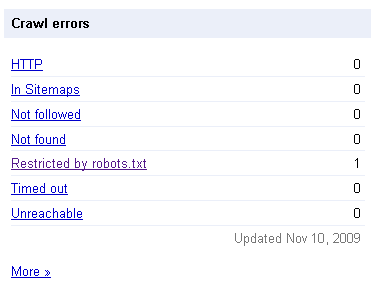
crawl errors
fully-indexed
Impressive isn’t it! Adopt the right method and you will see a positive change too. Search Engine do really count for 75% of the traffic to your blog so make sure you smoothen the path for them by optimizing your sitemap as guided in today’s post.
Enhanced by Zemanta

Tuesday, April 2, 2013

Get Your 3D Social Icons With Spin 360 degrees

3D Social Icons With the Css rotate when you place your cursor over each icon they spin 360 degrees, they then spin back 360 when the cursor is removed (Cool eh).I also have a slight opacity hover effect on the icons.So in this post I will show you how to add the icons to your blog, linked to your social profiles and feeds.

Add The Social Icons With Css Effects To Your Blog Like This sample:


IconIconIconIconFollow Me on Pinterest

spice up your blog

OK so I have two tutorials, one for Blogger and one for Wordprtess.

Wordpress Tutorial


1) In Your Wordpress Dashboard Click 'Apperance' > 'Widgets' > Add A text Widget to your sidebar and paste in the code

Widget Code
--------------------------------------------------------------------------------------------------------------------------
   <style> #social a:hover {background-color: transparent;opacity:0.7;} #social img { -moz-transition: all 0.8s ease-in-out; -webkit-transition: all 0.8s ease-in-out; -o-transition: all 0.8s ease-in-out; -ms-transition: all 0.8s ease-in-out; transition: all 0.8s ease-in-out; } #social img:hover { -moz-transform: rotate(360deg); -webkit-transform: rotate(360deg); -o-transform: rotate(360deg); -ms-transform: rotate(360deg); transform: rotate(360deg); } </style> <center><div id="social"> <!--Start Rss Icon--> <a title="Grab Our Rss Feed" href="YOUR-FEED-URL-HERE" target="_blank"><img border="0" src="https://blogger.googleusercontent.com/img/b/R29vZ2xl/AVvXsEiiTSOIhGbl5poxLc-5FkrhFTWtEc9ZqEDU9uPUpF2WHcT6U3rLhuhNyzeJGlzY4wxiEfpCh8S_Ot9rsubF7Xrttsf9PU2ev2KuTCUIwKJQ1Qy2ykT-SKwI34S6uRO6aXB6nRrIDc9fbziR/s1600/RSS-48x48.png" style="margin-right:1px;" alt="Icon"/></a> <!--End Rss Icon--> <!--Start Email Rss Icon--> <a rel="nofollow" title="Get Free Updates Via Email" href="YOUR-EMAIL-RSS-URL-HERE" target="_blank"><img border="0" src="https://blogger.googleusercontent.com/img/b/R29vZ2xl/AVvXsEj0Dcn-4uN-Ow6bPyX53a8g5P8LNdatq8MFRaTTPujdyVUr_4-3j2ocDQ20IjLu6qJS5ROLX1C4V6LLRCqIlubiV9aL1K6JQlkuDOvSevgD4w-ZBulX8T4dz1e-ARuZKN9WBE86R6sry_ZW/s1600/RSS-EMAIL-48x48.png" style="margin-right:1px;" alt="Icon"/></a> <!--End Email Rss Icon--> <!--Start Facebook Icon--> <a rel="nofollow" title="Like Our Facebook Page" href="YOUR-FACEBOOK-PAGE-URL-HERE" target="_blank"><img border="0" src="https://blogger.googleusercontent.com/img/b/R29vZ2xl/AVvXsEh62hdjOKdNS9xuS5KCzOGsieixeFMoltP8fjRBhKWphfCRgKZZ1T1Gey8nDRgjx6Hs2-Lyylh9pF6agzqfV0k1rxhsuOJEbwIT0C-Il2SSeQTfr_84YbT4JqgQNA6wJynMaW_b34gXI2s9/s1600/FACEBOOK-48x48.png" style="margin-right:1px;" alt="Icon"/></a> <!--End Facebook Icon--> <!--Start Twitter Icon--> <a rel="nofollow" title="Follow Our Updates On Twitter" href="YOUR-TWITTER-URL-HERE" target="_blank"><img border="0" src="https://blogger.googleusercontent.com/img/b/R29vZ2xl/AVvXsEi6TKBaHcvx-8KYCF3ddSX65kMISoBqOlpVfLz-rKK04p9Bo4MNf_gwUjV2EiwfKHSrJfLRxK6UofoVEdZHUf1k1zVleQcwt0Ah-f9ITlaIKo1CByBB6Vaex6fR3_ByXz3YIFzIZV07eMc8/s1600/TWITTER-48x48.png" style="margin-right:1px;" alt="Icon"/></a> <!--End Twitter Icon--> <!--Start Google+ Icon--> <a title="Follow Us On Google+" rel="nofollow" href="YOUR-GOOGLE-PLUS-URL-HERE" target="_blank"><img style="margin-right:1px;" src="https://blogger.googleusercontent.com/img/b/R29vZ2xl/AVvXsEgx6pJcZAo24I7Azo43W1nocI_c3vuffo6TSMSxsFBP13fJ4-zQnLpvFSSIvHwEy-ChZIn5MFbPR9LYdcvA_60WH0wjNJbZ-AWa23ySe_9_fOe1U36dM5rpSvhoqkIXuPxl0mWBa4vqosOg/s1600/GOOGLE-PLUS-48x48.png"/></a> <!--End Google+ Icon--> <!--Start Pinterest Icon--> <a title="Follow Our Pins" rel="nofollow" href="YOUR-PINTEREST-URL-HERE" target="_blank"><img style="margin-right:1px;" src="https://blogger.googleusercontent.com/img/b/R29vZ2xl/AVvXsEj1xi0QuRG7gJFjsA7UTY5JoBzm900BmM-YTd33XOOsAd9euBgbIjz7Sne59O7FuUpYUj_UaAzfIIN2bH6Dr8dWYlF8aSzvAHoqT8fBpqZHROvAdx0eyAi9wRFbI7sgBJpNzDaJRWei_zyA/s1600/PINTEREST-48x48.png" alt="Follow Me on Pinterest" /></a> <!--End Pinterest Icon--> </div><br/> <!--Start Feed Count Button--> <a href="YOUR-FEEDBURNER-URL-HERE" target="_blank"><img alt="spice up your blog" src="http://feeds.feedburner.com/~fc/spiceupyourblog?bg=ff9933&fg=000000&anim=1" style="border:0" /></a><!--End Feed Count Button--> </center>
------------------------------------------------------------------------------------------------------------------------

Important - Replace the yellow sections with your social profiles and feed URLs.

Note - If your familiar with Wordpress you can off course add the Css to your theme stylesheet.

Remove some of the icons - I have the code for each icon between tags like this <!--Start Rss Icon-->Code here<!--End Rss Icon-->>, to remove an icon remove the code between the tags.So for pinterest you will remove the code between the Start Pinterest and End Pinterest tags etc...

Blogger Tutorial

1) In the new Blogger dashboard click the drop down menu for your blog > Choose 'Layout' > Click 'Add A Gadget' > Choose 'Html Javascript' > Paste In The Following Code as shown in the video :


Widget Code:
------------------------------------------------------------------------------------------------------------------------

    <style> #social a:hover {background-color: transparent;opacity:0.7;} #social img { -moz-transition: all 0.8s ease-in-out; -webkit-transition: all 0.8s ease-in-out; -o-transition: all 0.8s ease-in-out; -ms-transition: all 0.8s ease-in-out; transition: all 0.8s ease-in-out; } #social img:hover { -moz-transform: rotate(360deg); -webkit-transform: rotate(360deg); -o-transform: rotate(360deg); -ms-transform: rotate(360deg); transform: rotate(360deg); } </style> <center><div id="social"> <!--Start Rss Icon--> <a title="Grab Our Rss Feed" href="YOUR-FEED-URL-HERE" target="_blank"><img border="0" src="https://blogger.googleusercontent.com/img/b/R29vZ2xl/AVvXsEiiTSOIhGbl5poxLc-5FkrhFTWtEc9ZqEDU9uPUpF2WHcT6U3rLhuhNyzeJGlzY4wxiEfpCh8S_Ot9rsubF7Xrttsf9PU2ev2KuTCUIwKJQ1Qy2ykT-SKwI34S6uRO6aXB6nRrIDc9fbziR/s1600/RSS-48x48.png" style="margin-right:1px;" alt="Icon"/></a> <!--End Rss Icon--> <!--Start Email Rss Icon--> <a rel="nofollow" title="Get Free Updates Via Email" href="YOUR-EMAIL-RSS-URL-HERE" target="_blank"><img border="0" src="https://blogger.googleusercontent.com/img/b/R29vZ2xl/AVvXsEj0Dcn-4uN-Ow6bPyX53a8g5P8LNdatq8MFRaTTPujdyVUr_4-3j2ocDQ20IjLu6qJS5ROLX1C4V6LLRCqIlubiV9aL1K6JQlkuDOvSevgD4w-ZBulX8T4dz1e-ARuZKN9WBE86R6sry_ZW/s1600/RSS-EMAIL-48x48.png" style="margin-right:1px;" alt="Icon"/></a> <!--End Email Rss Icon--> <!--Start Facebook Icon--> <a rel="nofollow" title="Like Our Facebook Page" href="YOUR-FACEBOOK-PAGE-URL-HERE" target="_blank"><img border="0" src="https://blogger.googleusercontent.com/img/b/R29vZ2xl/AVvXsEh62hdjOKdNS9xuS5KCzOGsieixeFMoltP8fjRBhKWphfCRgKZZ1T1Gey8nDRgjx6Hs2-Lyylh9pF6agzqfV0k1rxhsuOJEbwIT0C-Il2SSeQTfr_84YbT4JqgQNA6wJynMaW_b34gXI2s9/s1600/FACEBOOK-48x48.png" style="margin-right:1px;" alt="Icon"/></a> <!--End Facebook Icon--> <!--Start Twitter Icon--> <a rel="nofollow" title="Follow Our Updates On Twitter" href="YOUR-TWITTER-URL-HERE" target="_blank"><img border="0" src="https://blogger.googleusercontent.com/img/b/R29vZ2xl/AVvXsEi6TKBaHcvx-8KYCF3ddSX65kMISoBqOlpVfLz-rKK04p9Bo4MNf_gwUjV2EiwfKHSrJfLRxK6UofoVEdZHUf1k1zVleQcwt0Ah-f9ITlaIKo1CByBB6Vaex6fR3_ByXz3YIFzIZV07eMc8/s1600/TWITTER-48x48.png" style="margin-right:1px;" alt="Icon"/></a> <!--End Twitter Icon--> <!--Start Google+ Icon--> <a title="Follow Us On Google+" rel="nofollow" href="YOUR-GOOGLE-PLUS-URL-HERE" target="_blank"><img style="margin-right:1px;" src="https://blogger.googleusercontent.com/img/b/R29vZ2xl/AVvXsEgx6pJcZAo24I7Azo43W1nocI_c3vuffo6TSMSxsFBP13fJ4-zQnLpvFSSIvHwEy-ChZIn5MFbPR9LYdcvA_60WH0wjNJbZ-AWa23ySe_9_fOe1U36dM5rpSvhoqkIXuPxl0mWBa4vqosOg/s1600/GOOGLE-PLUS-48x48.png"/></a> <!--End Google+ Icon--> <!--Start Pinterest Icon--> <a title="Follow Our Pins" rel="nofollow" href="YOUR-PINTEREST-URL-HERE" target="_blank"><img style="margin-right:1px;" src="https://blogger.googleusercontent.com/img/b/R29vZ2xl/AVvXsEj1xi0QuRG7gJFjsA7UTY5JoBzm900BmM-YTd33XOOsAd9euBgbIjz7Sne59O7FuUpYUj_UaAzfIIN2bH6Dr8dWYlF8aSzvAHoqT8fBpqZHROvAdx0eyAi9wRFbI7sgBJpNzDaJRWei_zyA/s1600/PINTEREST-48x48.png" alt="Follow Me on Pinterest" /></a> <!--End Pinterest Icon--> </div><br/> <!--Start Feed Count Button--> <a href="YOUR-FEEDBURNER-URL-HERE" target="_blank"><img alt="spice up your blog" src="http://feeds.feedburner.com/~fc/spiceupyourblog?bg=ff9933&fg=000000&anim=1" style="border:0" /></a><!--End Feed Count Button--> </center>

-----------------------------------------------------------------------------------------------------------------------
Important - Replace the yellow sections with your social profiles and feed URLs.

Remove some of the icons - I have the code for each icon between tags like this <!--Start Rss Icon-->Code here<!--End Rss Icon-->>, to remove an icon remove the code between the tags.So for pinterest you will remove the code between the Start Pinterest and End Pinterest tags etc...
Enhanced by Zemanta

Saturday, March 30, 2013

Fixing The Feedburner Subscriptions by Email Error

 Feedburner issue when you go to subscribe via email to your feeds the following error appears,
feedburner error
First of all you need to signup to Feedburner and burn your feed.
Once you have done that click on the Publicize tab,
publicize
                                                      Then click on Email Subscriptions,
email subscriptions
                                   Copy the generated code and paste it into a text editor,
copy code
 My WordPress theme has an RSS email subscription component in the footer (yours may be different),
email rss
                                         Go to Appearance > Editor in WordPress,
editor
As my RSS email subscription component is in the footer, I need to edit footer.php (yours may be different),
footer.php
Next, I found the following piece of code in my footer.php file,

-------------------------------------------------------------------------------------------------------------------------
onsubmit=”window.open(‘http://feedburner.google.com/fb/a/mailverify?uri=<?php echo get_option(‘feedmail’); ?>’, ‘popupwindow’, ‘scrollbars=yes,width=550,height=520′);return true”>
--------------------------------------------------------------------------------------------------------------------------.


              Then went to my Feedburner code and copied the following,
----------------------------------------------------------------------------------------------------------------------------
onsubmit=”window.open(‘http://feedburner.google.com/fb/a/mailverify?uri=thesocialmediaguide’, ‘popupwindow’, ‘scrollbars=yes,width=550,height=520′);return true”>
----------------------------------------------------------------------------------------------------------------------------.

Then copied this Feedburner code and pasted it over the code in the footer.php file.

.
So that it the first bit of copying and pasting out of the way.. one more to go..
.
                 Then found the following piece of code in my footer.php file,

<input type=”hidden” value=”<?php echo get_option(‘feedmail’); ?>” name=”uri”/><input type=”hidden” name=”loc” value=”en_US”/>
.
                   Then went to my Feedburner code and copied the following,
<input type=”hidden” value=”thesocialmediaguide” name=”uri”/><input type=”hidden” name=”loc” value=”en_US”/>
.

I then copied this Feedburner code and pasted it over the code in the footer.php file.

.
Click on <Update file> to save the changes.
Go back to your site to test everything works.
Enter your email address to subscribe,
emailAddress
Enter your email address,
request
                                                      The following should display,
check email
                After click on the confirmation link in your email address, then following will appear,
confirmed
Ready!

Enhanced by Zemanta

Botones Isometricos de Social Media


Barra Lateral Fija