Welcome Enjoy Tutorials

Liked us?

Showing posts with label Google Chrome. Show all posts

Tuesday, May 7, 2013

Google Chrome Extensions to be More Productive on Blogger

google chrome
google chrome (Photo credit: toprankonlinemarketing)
According to Wikipedia productivity can be defined as "the relationship between the results and the time we spend to get it." In this post, we'll dip into those extensions for Google Chrome browser, allowing us to just that, save time in the management and administration of our blog and therefore be more productive.

The first is recommend you use the Google Chrome browser, for several reasons. The first is that with Google Chrome get greater compatibility with Google services and more now with the new changes in services since many of them are based on HTML5 and CSS3. The second and most important, the "Extensions" which are nothing more or less that additional functionality can be built into the browser itself.

The most practical way to approach this article is pintándote few everyday situations to see if you identify with any of them.


"I lose a lot of time looking for a way to access Google services"
Managing a blog is challenging, we have to go into Google Analytics to see statistics, then we will see if we have Gmail for email, respond to blog comments, etc.. We entered Blogger to also see statistics, compose new post ah ... and from time to time we look at our piggy bank called Google Adsense to see if we have some income from advertising, not to forget where we annotations Google Docs, Calendar, etc..

Google Shortcuts is a browser extension that offers access Google services (160) that most interest us with a simple click. Once installed you just have to look for services, click to add them to the list. Remember that you can manage your extensions from menu Tools -> Extensions or put in the browser address bar this chrome :/ / extensions /


"I lose a lot of time on my social networks to share the same information"
Besides that we have linked our blog with Facebook or Twitter you may be interested in publishing a link to specific input in order to re-promote it. So it is very common to have to go on Twiiter, Facebook, Linkld to post the same.

Sharedaholic, lets share links on your social networks. You can configure it to show you only the social networks that interest you. Now just copy the url of your post and click on this button to send it to all the social networks you've previously configured.


"I lose a lot of time writing down links to pages to read later."
It happened to you that you are preparing a new post for your blog and find the documentation phase reference articles and enter to Gmail or Google Docs simply to copy the URL of the article to read later.

Read Later Fast, allowed once on the item you click the right mouse button and press the Read later (see below). When you have time, open the browser and click on a new tab, press the Read application later and get access to items previously marked.


"I lose a lot of time getting to Gmail just to check if I have new messages."
Those expecting an important message and are continually checking your inbox and anything that does not come.

Gmail Checker shows you in the browser bar icon with the number of unread messages. Now you know in advance that you have something pending in your inbox.


"I like to be aware of the particulars of my Twitter"
If anything characterizes Twitter is the immediacy of information. It may interest you at all times monitor this network without having to be changing in the browser tab.


Silver Bird is a lightweight Twitter client for Chrome, so like Gmail Checker alerts you to tweets that mention you, besides letting you tweet directly

"I have to be continually capturing screens, cropping ..."
Indeed, when you write a tutorial on a web service, you lose a lot of time on this task.

Capture and Annotate allows you to capture all or part of the browser window, annotate and store the result in a PNG or even host the file on the web.

Here we mention the most common extensions that usually work with. There are thousands of extensions, both free and paid. Connect with Google Web Store to find more extensions for your browser.

Conclusions, extensions for Google Chrome help us save time and are therefore more productive, allowing us to focus on what really matters, the creation of new content on the blog.


As always, I invite you to use comments to leave your opinion on this article. If you liked this post and want to be anywhere else, follow me via Facebook, Twitter, subscribe by email, Google Friend, RSS now also on Google +. Use social buttons at the bottom of the post to recommend it to your friends. Thank you!
Enhanced by Zemanta

Wednesday, May 1, 2013

How to Include a Print Button on Each Blog Post?

Depending on what type of blogs can make much sense to print a button associated with each entry. Imagine a blog of recipes or craft blog. Besides we can also print PDF download post.

Of all the services I recommend PrintFriendly evaluated (click to see the print button standard service). You can customize the button and get a code for Web, Blogger and WordPress. Once set, clicking opens a new window PrintFriendly as if it were a preview. The user can choose to print, export to PDF or send by email. You can even remove text. We also explain how to put it on the blog (step 7 later in this tutorial).

Once seen, if the result is what you expect you're done. If instead you want to improve the code or customize the icon with another chart keep reading.

Steps to improve PrintFriendly code and add a custom icon


    1.Get the print icon. I recommend the service www.iconfinder.net
    2. Choose either the size of the icon, I select is 24px * 24px
    3.Download in PNG format to your computer
    4. Now we host the PNG. I recommend Google Sites (as we saw when we talk about social icons on the blog), which allows you to create a website and host files and then access them from the blog, follow these steps:
  • Enter Google Sites
  •  Open your site or create a new one (remember that the site you have to be public)
  • Go to Manage Site option from which you can upload attachments.
  • Add the printer icon you have chosen.

    5.Now look at the PrintFriendly Enhanced HTML (a single bond):

        <a expr:href='"http://www.printfriendly.com/print?url=" + data:post.canonicalUrl' target='_blank'> <img alt = 'Print or Export PDF' src = 'https://sites.google.com/site/iniciablog/PDF24.png' /> </ a>

             As selected in the red since indicate the url of your site and the PNG
       
    6.Copy the snippet of HTML to a notebook to customize it.
    7. When you have it, copy it and go to the Template tab and then HTML Editor
    8. For safety make a copy of the template "Download Full Template".

    9.Search <b:include data='post' name='shareButtons'/> (use internal search ).Press CTRL + F
    10.Paste the code you copied right below the line you have found.
    11.Save the template and view the blog.


On my case the meaning of that button is that you can serve you and apply it successfully. Leave your comments. Thank you.

PrintFriendly Extension for Google Chrome
If you are using Google Chrome, you might like to assess the extent corresponding to PrintFriendly to add it to your browser.
Enhanced by Zemanta

Tuesday, April 30, 2013

Google Currents can take your blog to iPhone, iPad and Android


This is an issue I've been mulling over a few months How to get blog posts are displayed optimally using a native application on iPhone, iPad, Android Smartphone and Tablets with Android?

What is Google Currents?
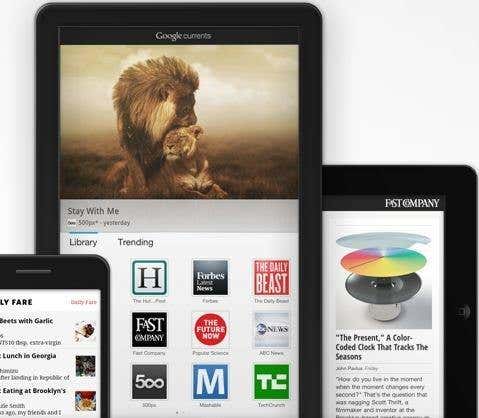
Google Currents is an application to be installed in any of the above mentioned devices from Android Market or from the Appstore as applicable.

Google Currents can subscribe to Publications. These editions are created using Google Currents Producer and this is where it gets really interesting as you can take advantage of RSS (Feed) of the blog as a source to create a new edition. But not only that, they also create other sections within your linked Edition Flickr, Picasa, YouTube, Google+ and all the RSS feeds you want.

We're actually doing a magazine or trade publication compatible with iPhone, iPad, Android and tablet all from a single service called Google Currents. I have found what I've been looking for so long, finally a service (from Google no more and no less) which ensures the correct display of the articles in my blog on these devices.

Google Currents is more than an RSS reader and the source is a repeat edition which in turn is composed of different sections (rss, photos, videos, articles, etc.).

You should see the following video of just over 1 minute to see how Google Currents. Each icon on the home screen are Editions.


After mastering this new service, we set to work to create our own from the Blog Edition.

How to create a Google Currents edition with the contents of the blog?

     1.Connect with Google Currents Producer (only from the Google Chrome browser)
     2.Accept the terms of use, you must fill out a short form
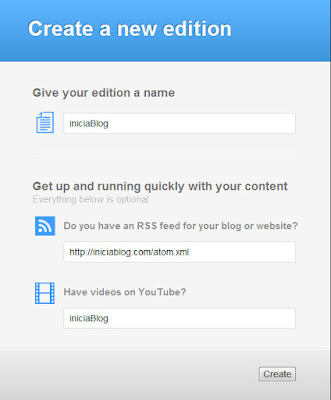
     3.The next step is to create a new edition using a form which asks:google currents
         Edition name
         RSS Feed
         (http://tublog.blogspot.com/atom.xml)
         Optionally Youtube channel
     4. Click the Create button to start the process of creating your new edition. You see this is a quick start wizard where it asks for two basic elements, the feed and a YouTube channel, you add more after more sections to your edition
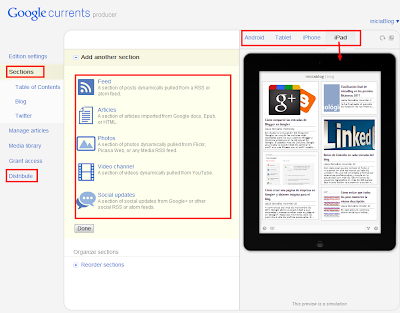
    5. Once completed, the entire interface to access Google Currents Producer of where you should go reviewing and completing the information on the different tabs.
Interface Google Currents
I have highlighted in Red are those keys though of course you must go through each of them. Once you have your sections and you have it ready, the next step is the distribution. Which is to offer to the readers of your blog a link to subscribe to your issue from your device.

google currents
IniciaBlog editing Editing for iPad, iPhone and Android devices using Google Currents Producer
Obviously the first thing you should try is yourself, remember that requires that you have previously installed the Google Currents.

As you can see is a very good service that solves a complex issue. Followers of the blog will have a compatible editing on these devices also leveraging the power of each one of them.

From the Distribute tab you can get the link then you will promote to your readers.

Enhanced by Zemanta

Botones Isometricos de Social Media


Barra Lateral Fija