This is the blog about blogger tricks and tutorials and widgets in a simply and easy way to improve you blog.
Showing posts with label iPhone. Show all posts
Monday, May 6, 2013
What is Buffer and how to combine it with Blogger
Buffer is a service that allows you to store the notifications you cast from your blog to your social channels (Twitter, Linkedin or Facebook) for publication following is a schedule. In this article I give the keys to combine it with Blogger.
One of the tasks as bloggers have to consider, is to promote not only the new post, but the above, as long as they maintain in full force and interest. In my case, what I did was open my post and click the Twitter button. Of course, not knowing if it was the best time or the best time. Also I did not like suddenly Tweet 3 or 4 items. So finally it was all a bit random and not follow a specific pattern. For me it has been a great discovery and I encourage you to implement it in your daily make as a blogger.
What is the idea?
The idea is simple. We continue by clicking on the Twitter button as if we were to publish but instead of "Tweet", Buffer will press the button, so that is not published at the time, but following a schedule and based on previous stock you have on Tweets for launch from Buffer. Ideally, go fill your Buffer and make 1 full week.
If you have the Twitter button you can also send your post to Buffer using the right mouse button, or by a new icon that will display in your browser to read it.
What does BUFFER against direct notification to your followers?
As I said before, Buffer is as a collector of the notifications you want to convey to your followers on Twitter, Facebook or Linkedin. Instead of launching a direct notification, it is stored to be launched following a few hours a day. Of course not everything has to go through the buffer, you can continue to report to your followers, as has been done so far. Remember to sync your new publications with your social channels can use IFTTT (recommended) or TwitterFeed.
Keys to combine Buffer with Blogger
Buffer register and Configuration
Sign in BufferApp, creating a new account or using Twitter, Facebook or Linkedin
Connect with your different accounts Buffer
Click where it says Settings at the top to access the calendar
Choose your social channel and now you can configure which days of the week and what time throw your notifications. (See this screen)
Install Buffer extension for your web browser
Browser extension for Google Chrome (recommended)
FireFox browser extension (from the extras of Buffer)
Sailed Extension for Opera
"Buffea" your first post using the Twitter button
Do the usual, ie see a post and click on your button Twitter. Just click it and watch you Buffer button appears next to the button for Twitter. To add to Buffer should indicate by what account (Twitter, Facebook or LinkedIn) you release it (may be three).
Now just send the Buffer tickets that you want to promote during the week, so that you have more time to new content, pending comments or simply respond sports, lol.
Install Buffer on your SMARTHPHONE
The mobile application allows you to share with Buffer any web address you're visiting. Plus you have access to your schedule can view the status of Buffer and statistics of each notification released. I have it installed and check the soil often.
Buffer app for iPhone, iPad
Buffer app for Android (Google Play)
How to know what time notify my followers?
This is the big question. What we want is that the impact of our notice have more effect. This is achieved notice in those times of the day where you have more active followers. For this statistics online services are able to provide this data. Furthermore, these services can automatically set Buffer schedule adjusting those hours more active followers.
Timely
Tweriod (very easy)
SocialBro (Chrome extension)
Did you know BUFFER? Do you're using? Do you see it practical?
I would like to complete this article with your comment. Also if you consider it interesting to your friends and followers share used social buttons located at the foot of the article.
Tuesday, April 30, 2013
QR Codes. What are, what they are and how to add them to the blog
QR codes (Quick Response) barcodes are able to store certain types of information such as a URL, SMS, Email, Text, etc.. However, I can not use the word again as these codes were created in 1994, but, thanks to the rise of the new (now if) SMARTHPHONE smartphones or these QR codes are again very very fashionable.
It's funny how every day without hardly realizing it, many of our daily activities like shopping, gym, to the movies ... the parking and many are managed quickly and accurately through codes bar. This will also happen with this code whose use at this time is innovative and very common soon will find it everywhere.

Creative business card with a QR code included
Here's an example, ... a business card .. if, if the lifetime. Well, if you say you can generate a QR code and encode in a URL for example to your blog or website and that when this code as printed on your business card is scanned by the camera causes a SmartPhone connect the phone directly to the website.
Another example is to create a QR code with your personal information (vCard), when read with the teléfomo, contact details of your card will like a magic trick is trying to phone contacts .... just wonderful fast, direct and without typing anything. By including this QR code into the design of your business card you've become an interactive object.
It is best that you see with your own eyes. The first video, it shows the different real-world applications that are already making this code. The second shows you a LG marketing campaign based on the use of such codes.
Video example of applying multiple uses QR codes:
What kind of information can be stored in QR codes?
Here the list of what you can store in a QR code:
Contact (vCard). Name, company, phone, address ...
A web address (URL). For example the blog, to the web or even your profile on Facebook, Twitter, Linkld, Youtube, etc..
An email address.
A message like SMS.
A phone number to make a call.
A text up to 350 characters
Parameters wireless network access.
Data from an event to a calendar (date and time of start / end event name ...)
A Geolocation to see it on a map.
How I can generate a QR code?
There are many free online services. Below is a list of the ones I tested and I liked (all are in English):
Zxing. It is clear, simple and allows you to download QR code generated
QR4. Very flexible and can download the code vector file. Very professional
Delivr QR Code Generator. It has everything you need, very clear interface.
What happens when read with mobile QR code?
When your SmartPhone read the QR code will cause an action according to the type of information stored in the code, ie connect to a web address or send an SMS message, create a calendar event, make a phone call, etc. .
Post. Your SmartPhone (Android, iPhone, BlackBerry) must have software to scan the code.
Now I have my QR code generated. Now what?
Include it in your print ads, business cards, etc..
Post it on the web or on the blog. Will achieve capture the attention of your visitors.
Open your mind ... the possibilities are endless (see recommended readings)
Are you a marketing professional?
During the time I've been mulling over this topic, I came across QRky company that has an entire online platform available in Spanish, aimed at professionals. This service allows you, create your QR codes, know the statistics of the time in which the code has been read, where they read a map represented within. Also one of the errors "frequently" is once the code is printed on thousands of business cards, it should point to another web address, or the message that carries coded has a misspelling. With this platform you can create a universal QR code and switch the action without having to generate a new code.
You can evaluate QRky service completely free for a limited time getqrky.com
It's funny how every day without hardly realizing it, many of our daily activities like shopping, gym, to the movies ... the parking and many are managed quickly and accurately through codes bar. This will also happen with this code whose use at this time is innovative and very common soon will find it everywhere.
Creative business card with a QR code included
Here's an example, ... a business card .. if, if the lifetime. Well, if you say you can generate a QR code and encode in a URL for example to your blog or website and that when this code as printed on your business card is scanned by the camera causes a SmartPhone connect the phone directly to the website.
Another example is to create a QR code with your personal information (vCard), when read with the teléfomo, contact details of your card will like a magic trick is trying to phone contacts .... just wonderful fast, direct and without typing anything. By including this QR code into the design of your business card you've become an interactive object.
It is best that you see with your own eyes. The first video, it shows the different real-world applications that are already making this code. The second shows you a LG marketing campaign based on the use of such codes.
Video example of applying multiple uses QR codes:
What kind of information can be stored in QR codes?
Here the list of what you can store in a QR code:
Contact (vCard). Name, company, phone, address ...
A web address (URL). For example the blog, to the web or even your profile on Facebook, Twitter, Linkld, Youtube, etc..
An email address.
A message like SMS.
A phone number to make a call.
A text up to 350 characters
Parameters wireless network access.
Data from an event to a calendar (date and time of start / end event name ...)
A Geolocation to see it on a map.
How I can generate a QR code?
There are many free online services. Below is a list of the ones I tested and I liked (all are in English):
Zxing. It is clear, simple and allows you to download QR code generated
QR4. Very flexible and can download the code vector file. Very professional
Delivr QR Code Generator. It has everything you need, very clear interface.
What happens when read with mobile QR code?
When your SmartPhone read the QR code will cause an action according to the type of information stored in the code, ie connect to a web address or send an SMS message, create a calendar event, make a phone call, etc. .
Post. Your SmartPhone (Android, iPhone, BlackBerry) must have software to scan the code.
Now I have my QR code generated. Now what?
Include it in your print ads, business cards, etc..
Post it on the web or on the blog. Will achieve capture the attention of your visitors.
Open your mind ... the possibilities are endless (see recommended readings)
Are you a marketing professional?
During the time I've been mulling over this topic, I came across QRky company that has an entire online platform available in Spanish, aimed at professionals. This service allows you, create your QR codes, know the statistics of the time in which the code has been read, where they read a map represented within. Also one of the errors "frequently" is once the code is printed on thousands of business cards, it should point to another web address, or the message that carries coded has a misspelling. With this platform you can create a universal QR code and switch the action without having to generate a new code.
You can evaluate QRky service completely free for a limited time getqrky.com
Labels:
BlackBerry
,
Business card
,
iPhone
,
mobiles
,
QR code
,
qrcode.kaywa.com
,
SmartPhone
,
tutorials
,
Uniform resource locator
,
VCard
Google Currents can take your blog to iPhone, iPad and Android
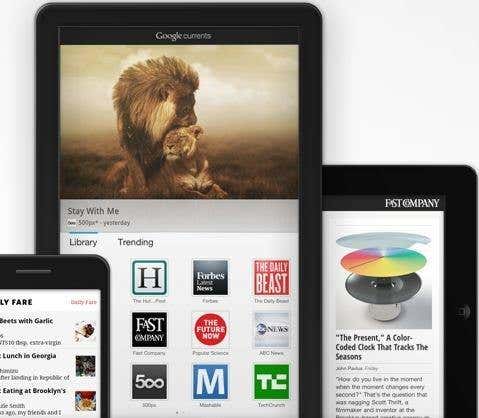
What is Google Currents?
Google Currents is an application to be installed in any of the above mentioned devices from Android Market or from the Appstore as applicable.
Google Currents can subscribe to Publications. These editions are created using Google Currents Producer and this is where it gets really interesting as you can take advantage of RSS (Feed) of the blog as a source to create a new edition. But not only that, they also create other sections within your linked Edition Flickr, Picasa, YouTube, Google+ and all the RSS feeds you want.
We're actually doing a magazine or trade publication compatible with iPhone, iPad, Android and tablet all from a single service called Google Currents. I have found what I've been looking for so long, finally a service (from Google no more and no less) which ensures the correct display of the articles in my blog on these devices.
Google Currents is more than an RSS reader and the source is a repeat edition which in turn is composed of different sections (rss, photos, videos, articles, etc.).
You should see the following video of just over 1 minute to see how Google Currents. Each icon on the home screen are Editions.
After mastering this new service, we set to work to create our own from the Blog Edition.
How to create a Google Currents edition with the contents of the blog?
1.Connect with Google Currents Producer (only from the Google Chrome browser)
2.Accept the terms of use, you must fill out a short form
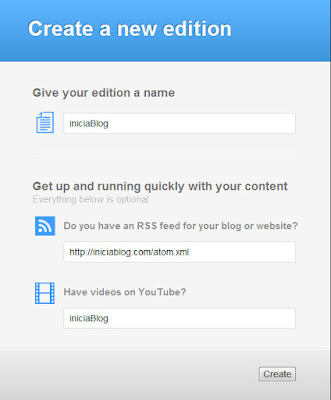
3.The next step is to create a new edition using a form which asks:

Edition name
RSS Feed
(http://tublog.blogspot.com/atom.xml)
Optionally Youtube channel
4. Click the Create button to start the process of creating your new edition. You see this is a quick start wizard where it asks for two basic elements, the feed and a YouTube channel, you add more after more sections to your edition
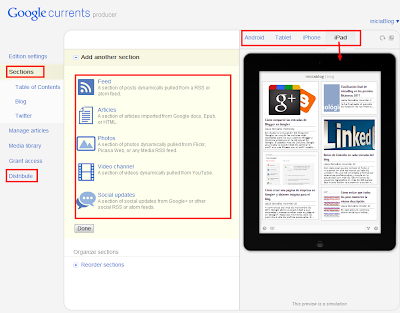
5. Once completed, the entire interface to access Google Currents Producer of where you should go reviewing and completing the information on the different tabs.
Interface Google Currents
I have highlighted in Red are those keys though of course you must go through each of them. Once you have your sections and you have it ready, the next step is the distribution. Which is to offer to the readers of your blog a link to subscribe to your issue from your device.

IniciaBlog editing Editing for iPad, iPhone and Android devices using Google Currents Producer
Obviously the first thing you should try is yourself, remember that requires that you have previously installed the Google Currents.
As you can see is a very good service that solves a complex issue. Followers of the blog will have a compatible editing on these devices also leveraging the power of each one of them.
From the Distribute tab you can get the link then you will promote to your readers.
Labels:
Android
,
Appstore
,
Google
,
Google Chrome
,
Google Currents
,
iPad
,
iPhone
,
Youtube
Subscribe to:
Posts
(
Atom
)