Welcome Enjoy Tutorials

Liked us?

Showing posts with label Search engine optimization. Show all posts

Tuesday, May 7, 2013

Creating a business page on Google+ and get badge for blog

At the beginning of the month of November 2011, Google opened the possibility that companies and brands to create your Google+ page. Until then, only allowed discharge of personal profiles. If you have a business, brand, company, or other musical group, it's time to have your own page on Google+.


Some time ago I wrote an article called "A company has no friends, has fans" and tried not to fall into the mistake of creating a personal profile to manage our brand presence on Facebook.

Now with Google+, and although it is mandatory to have a personal profile to create and manage a brand page (not in Facebook), which subsequently we empower our followers, customers, etc.. page is not marked as such profile that aims administration.

You should see the following video where you can see how a user added to his circles to a company that sells and repairs bicycles ZEN Bikes. The company uses Google+ page to announce not only their news but also as a meeting place with your customers with pictures of activities, hangouts (video conference), suggestion box, etc..


The strategy that Google poses to our business, is based on three pillars. The first is sharing, there is no doubt that this new space represents all a platform to share photos, videos, milestones and all we want to communicate the business. The second is to let you know by logos (logos) to be recognized by your followers and customers and aims to take you to your Google+ page. Finally measure ... and it's not easy to know the impact on our fans and customers, so Google is planning to offer in the future statistics on the use of your Google+ page


Steps to create your Google+ brand page and put a logo on blog


Step 1. Create a Page on Google+

     Sign in to Google+ for businesses and click on Create a page on Google+
     You must have already previously created a personal profile, otherwise you will give you high.
     Once inside you will see a screen like the one show below:

google plusSelect the button to the left (categories) that best defines your company brand. Depending on what you choose will ask certain data. Click the Create button to register your site
    In the next step will ask you to personalize the page with your company logo and a slogan.


Step 2. Get your insigna

    When your page is created, you will see a welcome page
    Click Get Badge (recommended) or accessed through this link you prefer on this link and then put the ID of your page if it appears empty. More info here
    Choose the type of logo that you like, I chose the large icon
    Copy the code to put on the blog now


Step 3. Add your insginia in Blog (Blogger)

    Open the tab "Design"
    In the sidebar select "Add New Gadget".
    A list, choose the one that says "HTML / Javascript".
    In content, paste the code obtained above.
    Save the template and view the blog.
    Remember that you can move the gadget to place it in the desired location.

How do I manage the new page on Google+?

When you enter your personal profile on Google+, you will see a dropdown to the left under your name from which you manage your pages.

How do I publish blog content on the new page on Google+?
So far I know of no service that links the publication of new blog posts to your Google+ page. So you should copy the url of the post that you happen to Google+ and paste it in the text box on your page News Google+

Post. In my case I have a personal profile and now a brand page, so far I have not seen a mechanism to migrate profile followers of the page.

We invite you to visit my Google+ page by clicking here or on the badge for you right.

As always, I invite you to use comments to leave your opinion on this article. If you liked this post and want to be anywhere else, follow me via Facebook, Twitter, subscribe by email, Google Friend, RSS now also on Google +. Use social buttons at the bottom of the post to recommend it to your friends. Thank you!
Enhanced by Zemanta

Wednesday, May 1, 2013

How Avoid The Same Description On Google Search

In this article we look at how to keep our post with the same description in Google result page, thus improving the SEO of our blog.


At Blogger you can indicate a description of the blog on the Settings tab and then description. This is highly recommended, but you must make a simple change to the HTML template so that this disclosure affects only the main blog address leaving as a description of each post the first paragraph of the same (156 characters), for this we will use a Simple conditional.

Do a search of your blog on Google to see if there is a problem

    In the search key Google Site: laurldetublog.blogspot.com
    Analyze the result. Here is a picture where you can see the problem


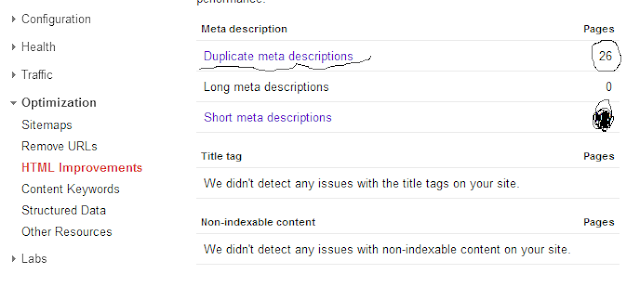
If you have configured Google WebMaster Tools, go to the Diagnostics tab and then click HTML suggestions and see where it says meta description should show the number of posts containing the same description. This is what we will address in this post.
search browser


Note: As you can see in the picture above, the description is the same in every post.

Steps to prevent all post show the same description

    Go to the Template tab and click Edit HTML button
    Find (Ctrl F or Ctrl B) this line in the code: CDATA [/ *
    Copy the following code and paste it just before the position where the previous line encontrastes:

    cond='data:blog.url <b:if data:blog.homepageUrl'> ==
       <meta content='Aquí must indicate the description of your blog' name='description'/>
    </ B: if>

Note: This code snippet should be in the head section ... </ head> blog. If you already have a fragment description is just add the condition.

Although it is a topic that is discussed in their day through this page, I have seen fit to make a post because of the importance from SEO perspective. Remember also that this issue (description and duplicate titles) is reported by the Webmaster Tools.

After applying the change to the template may take 1-2 weeks to see the new descriptions on the Google results page.

Finally thank the initiative of several followers of iniciaBlog for proposing this topic.

As always, I invite you to use comments to leave your opinion on this article. If you liked this post and want to be anywhere else, follow me via Facebook, Twitter, subscribe by email, Google Friend, RSS now also on Google +. Use social buttons at the bottom of the post to recommend it to your friends. Thank you! ;-)

Tuesday, April 30, 2013

Google Analytics For Statistics Blog

Google Analytics is a free service of Google analytics specialist websites using automatic data collection from visitors. Will be able to inform us about the number of visits, average time of the same, the pages viewed, unique visitors, visitor loyalty, location of users and so on.

What is the purpose of this tutorial?
If you've never used Google Analytics, the goal is to register an account and then ownership of your website / Blog. If you wore it before, you just need to add a new property. In both cases, we have to integrate a tracking code on the blog, which will collect all the information necessary to produce the statistics.

Do I really need if I just start the blog?

It is highly recommended, it is a necessity, even if your blog takes only a few days and visits published is not what you care about is more important for the future leave this task done from the beginning. Of course if your blog takes more time is urgent and you have the necessary configuration.
Tutorial. Steps to register your blog on Google Analytics
Step 1 and 2 of the tutorial is conditional on whether or not you were already user of Google Analytics.
1. Case 1. I am new, I never used Google Analytics
google analysis dashboard

    Access to Google Analytics
    Then it will show a wizard.
The first step is to register your account see image in step 1. After filling the data, press the Create Account button and continue at step 3 of this tutorial.

Two. Case 2. I already had an account set up in Google Analytics

    Access to Google Analytics
    Upon entering, select your account
    Click add new property. See display this step. Click the Create button property to subsequently obtain the tracking code.

Three. Get the tracking code (common for both cases)

    On the tracking code. Copy the code by right-clicking or Ctrl C provided on this page and go to siquiente step.

April. Paste the tracking code on the Blog

    Access Blogger
    Click Template tab
    Make a backup by clicking the "Create Backup / Restore"
    Click the Edit HTML button
    Click the Continue button
    Press the key combination Ctrl F or Ctrl B (Mac ⌘ ⌘ F or B) and looking
    Tracking code paste previously obtained just above the line found
    Save, view your blog, you should not be anything unusual

Once these steps, wait 24 hours and returns to access Google Analytics in order to verify that you are data on visits to your blog.

Enhanced by Zemanta

Sunday, April 28, 2013

One Tip Solution To Solve Google Sitemap Feed Proxy Errors

Most or all know how to submit your blog sitemap to Google if not you can Google for it and can find a lot of tutorials on this single topic but something that most of you might have observed are the Google Sitemap Errors! How do you solve them? Why so many errors when you have done everything the right way? The answer is simple , read on.
What actually happens is the fact that most bloggers burn their feeds at feedburner despite the default Atom feed system provided by Blogger. So most bloggers have redirected their default feeds to feedburner as shown below,

redirecting-site-feed
When we submit our RSS or Atom feeds at Google Webmaster Tools Site we are actually submitting the redirected feed hosted by feedburner. The disadvantage of doing so is that when Google Robot crawls your blog it basically indexes the data provided by the default BlogSpot feed system but since you have redirected your default feeds to feedburner, Google robot has to contact two feed systems at a time! first from BlogSpot and then from Feedbuner and thus it turns out into a confusion and results as Feed Proxy Errors which is surely a headache for every newbie blogger. Unfortunately the internet has almost rare tutorials on this issue. The reason behind doing a professional SEO course was indeed learning how to solve all such problems. Luckily I have come up with a solution.
The mistake everyone makes is by adding the following sitemap data,
http://YOURBLOGNAME.blogspot.com/rss.xml
OR
http://YOURBLOGNAME.blogspot.com/atom.xml
But this results in dozens of feed proxy errors. To solve this issue simply submit the following sitemap data,
http://YOURBLOGNAME.blogspot.com/feeds/posts/default?redirect=false
Note:- You only need to add feeds/posts/default?redirect=false  because your blog URL will be added by default.
where , feeds/posts/default?redirect=false is the code that redirects Google only to the default BlogSpot Atom Feed system.
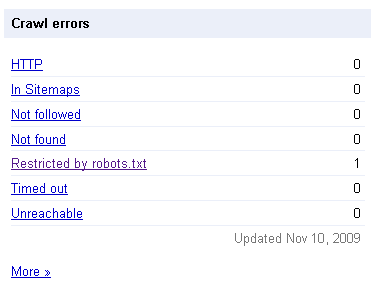
Finally the results for your blog will look like that for mine,
crawl errors
fully-indexed
Impressive isn’t it! Adopt the right method and you will see a positive change too. Search Engine do really count for 75% of the traffic to your blog so make sure you smoothen the path for them by optimizing your sitemap as guided in today’s post.
Enhanced by Zemanta

Sunday, March 31, 2013

Optimize the title entries to promote SEO Blogger

Work positioning (SEO) starts a blog since we published the first post. This is one of the most complex issues, positioning a blog is a set of actions with results in the medium and long term. Remember that a good positioning means more visits to the blog, and therefore greater opportunity to "sell".

The SEO, a matter of small details
The default mode which displays the title of each post, does not favor the SEO. Then follow these easy improve the title of the entries in Blogger.

How to optimize the title of the entries in Blogger?
As long as we play the HTML template I recommend backup before. Follow these simple steps:

    Access the Template tab and click the Create button Backup / Restore
    Once you have created your copy , press the Edit HTML
     (Mac in Mac ⌘ ⌘ F or B)Keyboard and press Ctrl F or Ctrl B and search for:

       <title> <data:blog.pageTitle/> </ title>

    Replaces code found by the following:

    <b:if cond='data:blog.pageType == &quot;item&quot;'>         <title><data:blog.pageName/> | <data:blog.title/></title><b:else/>       
         <title><data:blog.pageTitle/>
</title>
</b:if>


   Now  Save the template and view your blog


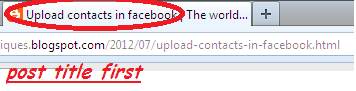
Now when you enter one of your post, look at the title that appears in the browser, at the top. It Put the title of the post first and then the name of the blog. It is this kind of details that favor the SEO of your blog.
Enhanced by Zemanta

How long it takes Google to index a new post in Blogger

Matt Cutts - SMX Advanced 2012 Photos
Matt Cutts - SMX Advanced 2012 Photos (Photo credit: planetc1)
All we have ever asked this question, especially during the first few weeks as bloggers. Anyway, it's frustrating publish, find your blog through for example the title of one of your latest posts and check that there is no trace of your work. This is possibly one of the first reasons why many blogs are abandoned.

The first thing that comes to mind is to think that Blogger does not work even knowing that this is a Google service. The second is to think that our content may not interest anyone and so no trace and well, tried a second and even a third post and nothing at all, we delete the blog and start again as doubt and tend certainly think that we have done wrong, until finally we take it for our blog impossible and goes to swell the list of thousands and thousands of blogs that have become failed attempts.

To solve this puzzle we "invited" Matts Cutts (Google principal engineer) to really explain to us how the search, so we understand the advice you give in the end. When you give the Play, turns on closed down the CC.

Analyzing How Index Works With Matts Cutts


As we have seen, the indexing of content is done through programs called spiders or spider. This allows tracking mechanism be adding to the Google index billions web pages, so that the search is performed on the index, so we hear the phrase ... "is that your site is not indexed by Google" , which is said as an expert and us we curramos the blog we have a face frame and thought ... that she think this.What Matts Cutts not clear in this video and try to make us, the time elapsed since we published our blog content, until we visit the famous spider to index the contents, so that then we ourselves search our blog by the content of an entry.
Steps for proper indexing

    
Go to the Settings tab in Basic and then check in the Privacy section you answered yes to both questions Want to add your blog to our listings? Allow search engines to find your blog?


Instead wait for the spider to come after us, take the initiative and informed directly of our blog Google sitemap sending.
    
As we saw in the video sites with more "reputation" that is, those with more inbound links and generate more dynamic content are a good place to index. An example of these sites are blog directories. These are indexed by Google much faster is a good choice as ultimately are links that lead to your blog.
    
Keep posting, at least 1 or 2 week post thus how often Google crawls your blog will be much higher and therefore the time elapsed since the public until your post goes to the index will be much lower.
    
Be patient, especially at the beginning as it can take up to one week to 10 days until they finally find our blog looking for content.
    
The key now is to continue publishing and applying different SEO Blogger tips that will help you position yourself better in search results (so far we have only spoken of content indexing)


Enhanced by Zemanta

How to display your picture next to your blog in the Google results

photo with blog
 In this tutorial you will learn to set up your blog and your Google+ profile so that your photo is displayed on the results page of Google.

Innovations that Google applies to its search results page should be exploited and more when it comes to increasing the visibility of your results and which will result in increased traffic to your blog.
 What we want is to show pictures of your Google+ profile next to the title and description of your blog in the Google search results page. If you achieve this, your picture might be the trigger for the surfer clicks on your results if you're not at the top of the result.


Some recommendations must meet

    You have created a profile on Google+
    Your profile should contain your photo, logo or not worth a caricature
    Your photo should be a close-up to show your face clearly
    Try to get that picture does not have background elements
    Your photo should be sharp and focused
    A neutral background help you stand out more
    Not many people can appear in the photo
    The picture may not appear trademarks

Note: The truth is I've seen pictures on the results page do not understand why let in unless they conform to the specifications says Google, for example this.
How to display your picture next to your blog in the Google results

Step 1. Set up your blog
Link to your Google+ profile from your blog using parameter Author
If you have a presence in Google+, you probably already have a icon follow me on Google+. If you have no presence, you would have to sign on Google+, create your profile and add your photo.

In either case, the link you put on your blog to your profile should look like this:


    author" target="_blank"> ...


Note the attribute? Rel = author "after Google+ ID, that is where the key is. Should respect these parameters on your link to your Google+ profile

How to know my ID on Google Plus
Very easy, go to Google+, go to the profile icon (on the vertical bar on the left) and look at the URL in the browser you have. In My case is: https://plus.google.com/111757776337593221461, this number is that you have to put in your link.


How to put an icon in my blog follow me on Google+

If you are someone who does not have an icon, you can get one by following this tutorial. The code you already updated there facilitated by parameter Author. If you do not want icon, just copy the code snippet above, fill in your ID, where the ellipsis by name or follow me on Google+ and add it to the side of your blog using the type with Gadget HTML / Java Script. If you have it you just have to update your link with the parameters you Author explained above.


Step 2. Configure your Google+ profile

Now we will complete your profile Google + where we will place a link to your blog for this, follow these steps.

    Google+ Profile Setup with links to the blog
    Access your Google+ profile
    Click on the tab About me
    Click the Edit Profile (located on top)
    Add a link to your blog in sections and links Collaborator
    Enjoy and updated if necessary a photo to your profile

Ready, now have to wait 1-2 weeks. Try to find you through Google and you should see your photo.

How to verify that everything is correct
If you want to check that everything is correct, use this tool where you simply need to enter the URL of your blog and click the Preview button. Must show a simulation of the result where your picture should appear. For more information on this issue, here is the link for the Official Service Centre for the Google Webmaster.
Note: Your photo will appear only once in the results page but it contains more entries on your blog, otherwise it would fill the results page with your picture and look like you work at Google, lol. Another thing, if you have applied these steps in more of your blogs and you're looking through your name, your picture will show the first results. That does not mean you did wrong in your other blog, get it apart and see your photo too.


Enhanced by Zemanta

Saturday, March 30, 2013

Place Post Title Before Blog Title Tricks

screenshot from a opensource search engine (op...
screenshot from a opensource search engine (openwebspider) (Photo credit: Wikipedia)
By default blogger displays, blog title before post title in search engines and and it is not good for  SEO. The best thing is  to change the blogger default setting and display Post title before blog title.


Why it is important to place post title before blog title

Only the post title that describes the whole post in few words. And those words also work as  the keywords of your post. So, whenever people will search something with those keywords your post will appear in search engines. But if you are not displaying post title first, then the chances for the people to click on your site will be less. Because they will see your blog title first and your blog title may not about your post.

How to place post title before blog title

  Steps to place post title before blog title.
  • Sign in to blogger.
  • Go to template> edit html> proceed.
  • Now find below code.
<title><data:blog.pageTitle/></title>

  • And replace it with this.
<b:if cond='data:blog.pageType == &quot;item&quot;'>
<title><data:blog.pageName/> | <data:blog.title/></title>
 <b:else/>
<title><data:blog.pageTitle/></title>
</b:if>


  • Now click on Save template.
Google will take some time to crawl your page however you can notice the changes in your browser tab. See the example.
post title pic
So you enjoy this trick.

Enhanced by Zemanta

Easy Way To Fix Duplicate Description Problems

Image representing Blogger as depicted in Crun...

Sometimes when you look at your Google Webmaster Tool for your health line website. You will found couple of HTML Improvements points for your website. It tells "Pages with duplicate meta descriptions". Ok, it may sound confused where to check this,  just follow the steps below:

Login to your Webmaster Tool >> Click on your website >> Go to optimization section >>  HTML Improvements.

Here you can see suggestions from Google if any. Like I have noticed for my blog.


How to fix duplicate content issue

Then you will realized the fact that generally archive pages does not hold any content. Various information from several individual posts display on them only. In that case your archive page and that post are having the same content, which Google will mark as duplicate content.

How to remove duplicate meta description?

Simply put a “noindexrobots meta tag to the archive pages. Here the steps:

 Login to your Blogger account.

Go to Dashboard > Template > Edit HTML. > Proceed


 Search for the <head> tag and add the code below after <Head> tag.

<b:if cond='data:blog.pageType == &quot;archive&quot;'>

<meta content='noindex,noarchive' name='robots'/>

</b:if>


Now Google Robot will not index your page and you can save your blog from duplicate content penalty.

I hope this help a lot.next time my friends

Enhanced by Zemanta

Botones Isometricos de Social Media


Barra Lateral Fija